
Wireless Apple CarPlay and Android Auto in Mercedes-Benz: Setup, Common Issues, and Proven Fixes
- Wireless Apple CarPlay and Android Auto depend on both phone compatibility and the Mercedes-Benz MBUX infotainment system.
- Most connection issues can be fixed by clearing old pairings, restarting the phone and MBUX system, then pairing from scratch.
- Persistent audio, screen, or software problems may require a Mercedes-Benz technician with dealer-level diagnostic tools.
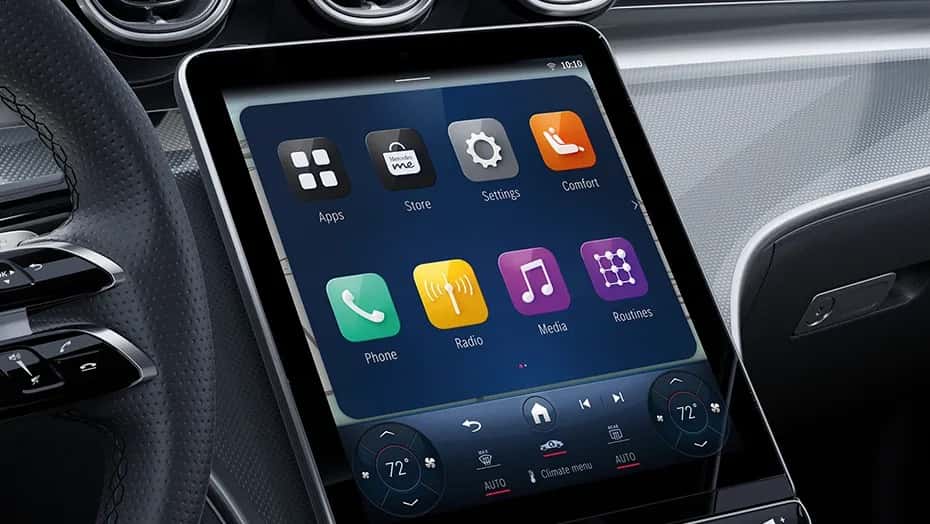
Getting your phone connected to your Mercedes-Benz should feel effortless. Whether you rely on Apple Maps for navigation, Spotify for your commute playlist, or hands-free calling to stay on schedule, wireless connectivity genuinely changes how you interact with your car. Apple CarPlay and Android Auto bring that experience to life through the MBUX infotainment system, cutting the cord while keeping your eyes on the road. Even well-designed technology has its rough edges, though, and setup plus occasional troubleshooting still trips up plenty of drivers. Here’s exactly what you need to know.
Before You Connect: Compatibility and System Requirements for Wireless CarPlay and Android Auto
Confirming compatibility before you dive in saves real frustration. Wireless Apple CarPlay and Android Auto are features tied specifically to the MBUX infotainment system. Vehicles with the older COMAND® system don’t support either feature wirelessly, and in many cases don’t support them at all. Even within MBUX-equipped vehicles, wireless availability varies by model year, trim level, and model line. Check your owner’s manual or look for a "Wireless CarPlay" or "Wireless Android Auto" option in the infotainment menu to confirm your vehicle supports it.
On the phone side, wireless Apple CarPlay requires an iPhone that supports CarPlay. Wireless Android Auto requires Android 9 or later, with specific minimums depending on the manufacturer (covered in the setup section below). If you’re unsure whether your vehicle qualifies, our service center can verify compatibility and confirm what your specific trim includes.
How to Set Up Wireless Apple CarPlay in Your Mercedes-Benz
Setting up wireless CarPlay requires both your iPhone and the MBUX system to be ready before the first pairing attempt. Jumping ahead or pairing out of order is the most common reason that initial attempt fails.
Prepare Your iPhone
Open iPhone Settings and confirm both Bluetooth® and Wi-Fi are enabled. Wireless CarPlay uses Bluetooth® for the initial handshake and a 5GHz Wi-Fi band for the actual data transfer. Your phone doesn’t need to be on a Wi-Fi network, but the Wi-Fi radio itself must be active. Keep your phone unlocked during pairing so it stays discoverable.
Complete the Pairing on MBUX
Start your Mercedes-Benz and navigate to the Phone or Connected Devices menu on the MBUX display. Select your iPhone when it appears in the list. Confirm contacts sync, accept the Terms and Conditions on the CarPlay prompt, then tap Allow on your iPhone when it asks. Select the CarPlay option (orange icon) in the car menu, tapping it to connect if it isn’t already lit. For first-time setup, confirm CarPlay use on your iPhone when the multimedia system prompts you. After that initial pairing, your vehicle stores the device and every subsequent connection should happen automatically when you get in the car with your phone nearby.
How to Set Up Wireless Android Auto in Your Mercedes-Benz
Wireless Android Auto follows similar logic but has a few Android-specific details worth knowing before you start.
Verify Your Android Version and App
Confirm your phone runs Android 11 or later, Android 10 or later on Google or Samsung devices, or Android 9 on a Samsung Galaxy S8, Galaxy S8+, or Note 8. On many Android phones, Android Auto is built into the operating system and will not appear in the Play Store. If it does appear there on your device, make sure it’s fully updated. As with CarPlay, both Bluetooth® and Wi-Fi need to be enabled on your device before you approach the car.
Complete the Pairing and Configure Auto-Launch
On the MBUX display, go to the Phone or Connected Devices menu and pair your phone via Bluetooth®. Then select Android Auto in the infotainment system and follow the on-screen prompts to authorize the connection and enable auto-launch. Once complete, verify that Android Auto appears alongside your Bluetooth® phone and music options in the MBUX interface. Enabling auto-launch means Android Auto opens on your display automatically every time you start the car, which is exactly what you want.
The Most Common Wireless CarPlay and Android Auto Problems Mercedes-Benz Drivers Experience
Even with a correct setup, wireless connectivity issues are something most Mercedes-Benz drivers run into eventually. Knowing what to expect makes troubleshooting a lot faster.
The most frequent problem is a failed or inconsistent initial connection, where the phone and MBUX simply can’t find each other. This usually traces back to a Bluetooth® or Wi-Fi radio that was toggled off, or a cached pairing creating a conflict. Dropped connections mid-drive are a related issue, often caused by signal interference or the phone being too far from the front of the cabin.
Audio glitches come up regularly too, including choppy playback, delayed navigation cues, and complete audio dropout. Frozen screens on the MBUX display, where CarPlay or Android Auto stops responding to touch entirely, are another common complaint. Software mismatches round out the list. An outdated phone OS, an older version of the Android Auto app, or a pending MBUX firmware update can each cause persistent problems that resist simple fixes.
Proven Fixes for Wireless Connectivity Issues in Your Mercedes-Benz
Work through these fixes in order, from simplest to most involved.
Fix Pairing Failures and Dropped Connections
Start by removing the pairing on both ends. On an iPhone, go to Settings, then Bluetooth®, find your vehicle, and tap "Forget This Device." On Android, open Bluetooth® settings, find the Mercedes-Benz pairing, and select "Unpair" or "Forget." On the MBUX side, open the Connected Devices list and remove the phone entry. Toggle Bluetooth® and Wi-Fi off and on, restart the phone, and turn the ignition off for two minutes before restarting MBUX. Then re-pair from scratch using the setup steps above.
For dropped connections, reduce the number of active Bluetooth® devices in the cabin. A smartwatch, wireless headset, or second phone that’s also paired can interfere with the CarPlay or Android Auto signal. Keep your phone within 30 feet of the front of the vehicle, and disable any VPN or background apps that may be disrupting wireless connectivity. Keeping your battery level topped up also matters, since low battery states can cause devices to reduce background wireless performance.
Resolve Audio Glitches and Frozen Screens
Audio problems and frozen screens often share the same root cause: a stalled software process on either the phone or the MBUX system. Make sure you’re routing audio through the CarPlay or Android Auto icon in MBUX, not through the Bluetooth® music source. On the MBUX system, perform a soft reset by holding the volume down and hang-up buttons simultaneously for 10 seconds. On the phone side, force-quit and relaunch the app. Android users can clear the Android Auto app cache through the phone’s app settings. iPhone users can offload and reinstall the app to clear corrupted data. Also check the volume mixer in your phone settings to rule out a muted audio channel.
Update Software and Reset When Basic Fixes Don’t Work
If the steps above don’t resolve the issue, check software versions. Update your iPhone to the latest iOS, or bring your Android device fully current. Check for MBUX updates by navigating to Settings, then System, then Software Update. Some MBUX updates require dealer-level tools to apply, which is worth keeping in mind if the system reports no updates available but you suspect one is pending.
If a software update doesn’t help, a factory reset of the MBUX system is the most thorough option. A factory reset will erase all saved settings, paired devices, and personalization on the infotainment system, so keep that in mind before proceeding. After the reset, re-pair your phone as if it were new. You can also reboot your Android phone in safe mode to check whether a third-party app is causing the conflict before committing to a full reset.
Quick Tips to Keep Wireless CarPlay and Android Auto Running Reliably
A few consistent habits prevent most recurring issues.
Keep your phone’s Bluetooth®, Wi-Fi, and location services always enabled. Park your phone in a consistent spot, like the center console, to maintain a stable signal to the front of the cabin. Disable battery saver modes that limit background connectivity, since these often reduce wireless radio performance without you realizing it. Avoid thick phone cases that may block antenna signals, and use only genuine cables if you’re testing a wired fallback connection. Keep your phone OS, the Android Auto app, and MBUX firmware updated regularly, as connectivity improvements are frequently included in routine software releases. Periodically clearing old or unused Bluetooth® pairings from your phone also keeps the connection process clean.
Still Having Trouble? Mercedes-Benz of Hoffman Estates Can Help
When to Bring It In
Some wireless connectivity issues go deeper than a software reset can reach. Hardware faults, antenna problems, and infotainment software conflicts that require dealer-level diagnostic tools are all situations where professional support makes the most sense. If you’ve worked through every fix above and the problem persists, it’s time to let a technician take a look.
How We Can Help
Mercedes-Benz of Hoffman Estates serves drivers throughout Hoffman Estates, Schaumburg, and the northwest Chicago suburbs with a certified service team trained specifically on MBUX systems. Our technicians can run diagnostics on persistent CarPlay and Android Auto issues, apply dealer-specific software updates, and identify hardware faults that standard troubleshooting can’t reach. All repairs use genuine OEM Mercedes-Benz parts to maintain the performance your vehicle was built with.
Schedule a service appointment online to get started, or contact us with any questions. If you’re considering an upgrade to a newer model with the latest MBUX features, explore our new inventory to see what’s available.
Frequently Asked Questions
Does every Mercedes-Benz model support wireless Apple CarPlay and Android Auto?
No. Wireless Apple CarPlay and Android Auto are tied to MBUX-equipped vehicles, and availability can vary by model year, trim level, and model line.
What should I do first if my phone will not connect to MBUX?
Start by forgetting the pairing on both your phone and the MBUX system, then toggle Bluetooth® and Wi-Fi off and on, restart your phone, and re-pair from scratch.
Why does wireless CarPlay or Android Auto drop while I am driving?
Dropped connections are often caused by signal interference, competing Bluetooth® devices, low battery performance settings, or the phone being too far from the front of the cabin.
0 comment(s) so far on Wireless Apple CarPlay and Android Auto in Mercedes-Benz: Setup, Common Issues, and Proven Fixes